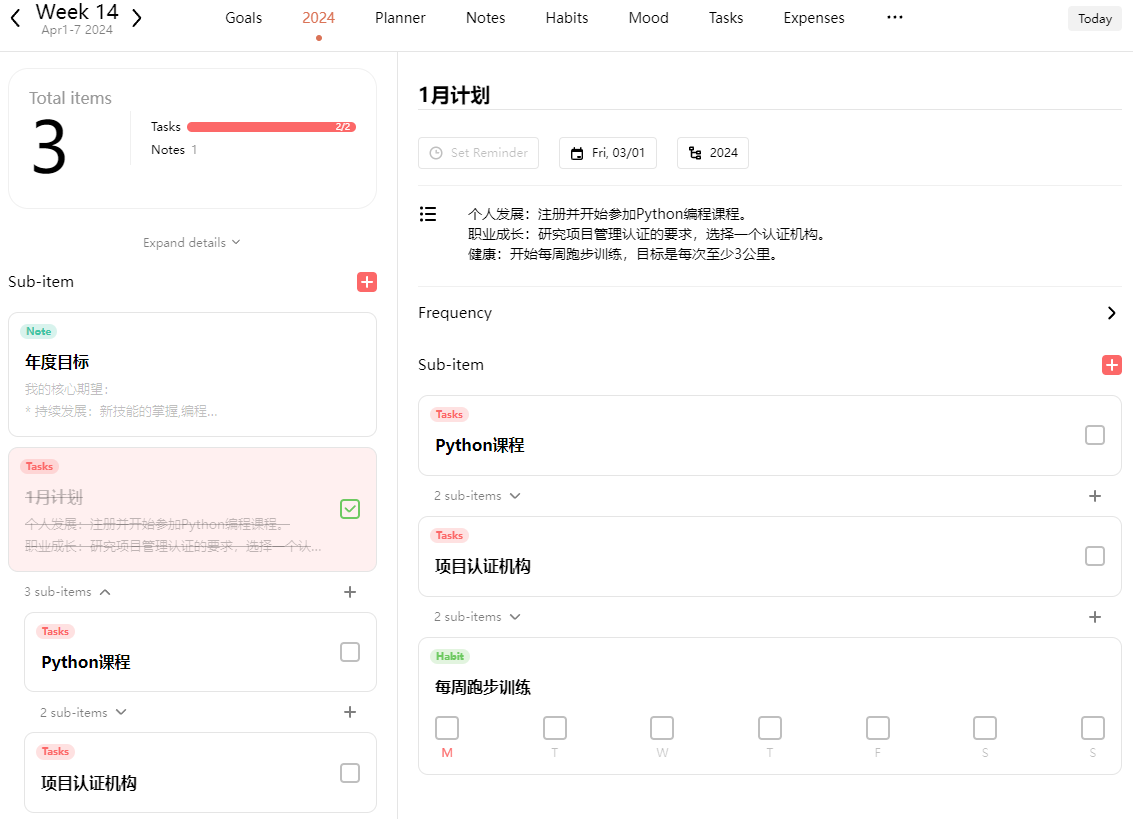
Customize which feature modules appear in the top menu and how they are ordered to make Elisi fit the way you work.
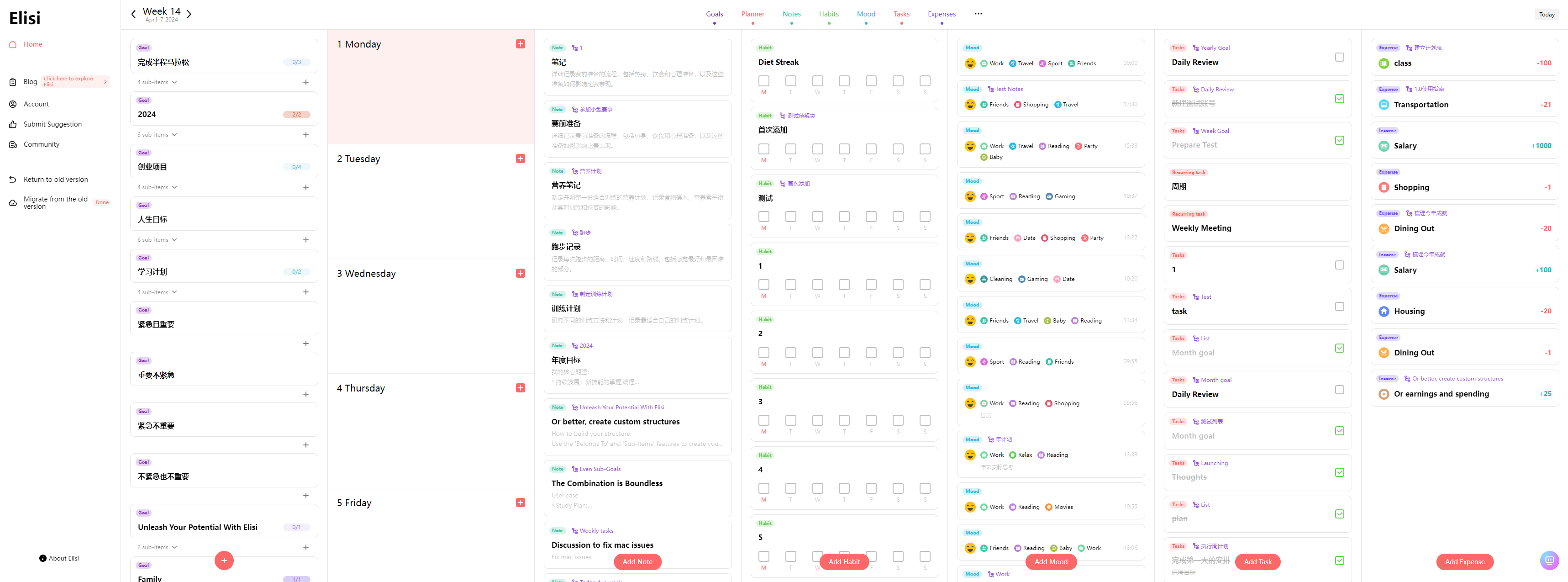
About the top menu
The top menu lets you customize the top area of the Elisi app. With a few clicks and drag-and-drop actions, you can arrange these seven modules:
- Goals
- Planner
- Notes
- Habits
- Mood
- To-dos
- Expenses
You can also choose which modules appear in the top menu.
How to use it
-
Open the top menu settings: In Elisi, select the ellipsis (
...) on the right side of the top menu. -
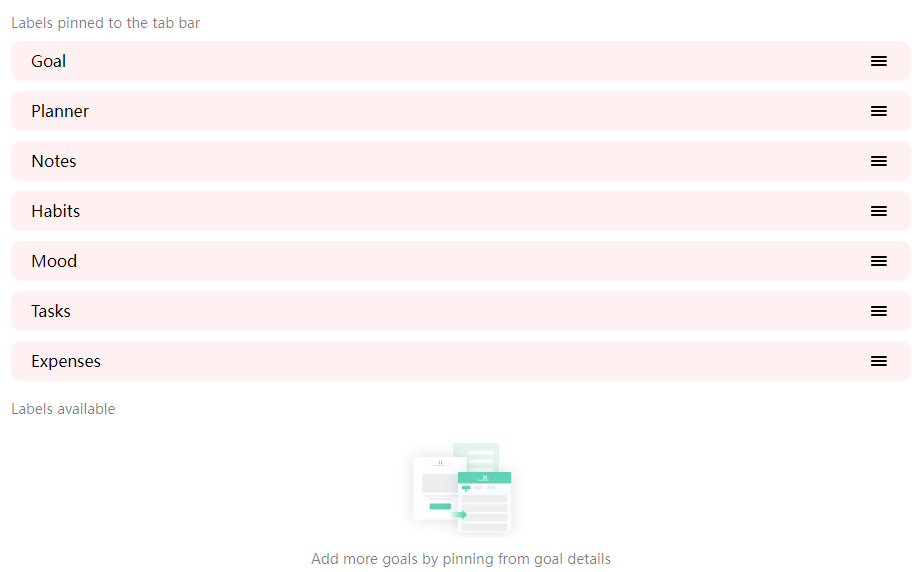
Reorder or hide modules: Drag modules to change their order. Select the hide control beside a module to remove it from the top menu.
-
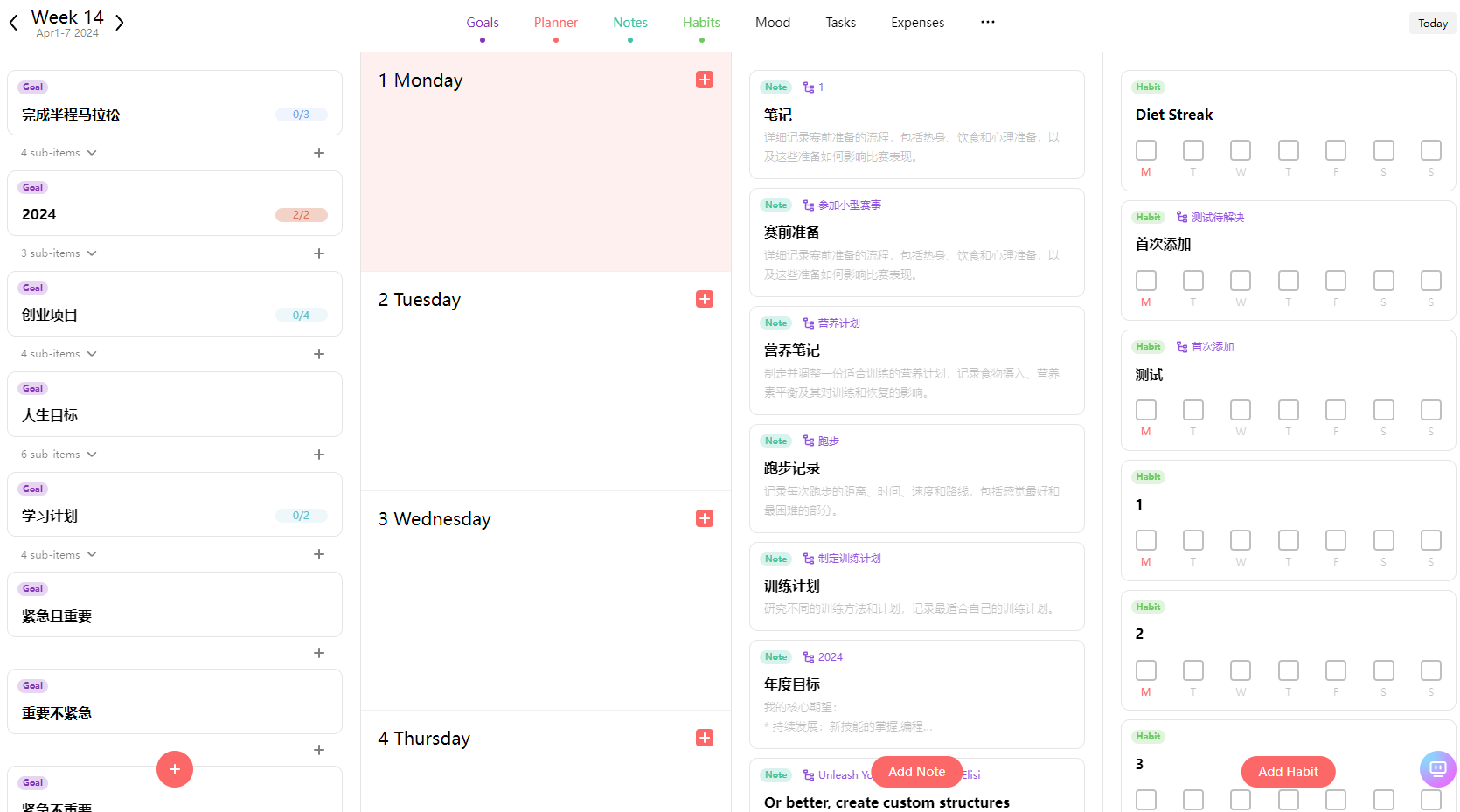
Open a module: After arranging the menu, select a module to see its items. For example, the Notes module opens your notes.
-
Pin an individual goal: Open a goal's details and choose to show it in the top menu. For example, pin an annual goal to keep track of its progress alongside your current plans.