
“Simplicity can be harder than complexity: you have to work hard to make your thinking clear enough to simplify things.”
— Steve Jobs
Clear, structured thinking takes effort. Simplifying your thoughts helps you focus on what matters and make your lists clearer.
Lists and relationships
Welcome to one of Elisi's core features: Lists and relationships. Use this flexible space to build a structure for your work and life, like putting building blocks together.
The key idea: flexible relationships
- Connect items freely: Any item, including a note, plan, goal, habit, mood, or expense, can belong to another item. Your information is no longer isolated; it can form a connected network.
- Keep the hierarchy clear: Each item has one parent. This helps you clarify a goal as you build its tree and makes the overall structure easier to understand.
Starred lists
Star a list to make your most important work easier to reach.
- A focused workspace: Star important goals or lists, such as “Core project” or “Health.” They stay near the top of the sidebar as your personal workspace.
- Focus with one selection: Selecting a starred list puts the Planner and list details into focus mode, showing only the items that belong to that list.
- Automatic relationships: New items you create while a starred list is selected, such as a task or note, automatically become its children.
- A dedicated All view: Each starred list has an All tab that shows every item belonging to it, regardless of its scheduled date.
- Change it any time: Promote a regular list to a starred list or turn a starred list back into a regular list as your needs change.
How to use these features
- Create a relationship:
- Find the goal, task, or note and choose a parent item. It could be a note, a plan, or a mood entry created while working on a goal.
- Open the item's edit view and select Belongs to.
- Search for and select its parent.
- To remove the relationship, select Belongs to again and choose Remove relationship.
- Use a starred list:
- Open list settings and turn on Star this list.
- The list appears in the sidebar. Select it to enter focus mode.
- New items created in focus mode automatically belong to the starred list.
Views and structure
Details for child items
Open any item with children to see the items below it. Every node can be part of a larger structure, helping you understand where you are and where you are going.
See the whole goal or focus on one part
- Overview: Open the main goal page to see the full hierarchy, with as many levels as you need.
- Focus: Open any sub-goal to work on that part without distractions from the rest of the plan.
Switch between the whole and its parts as needed. A starred list is a convenient way to enter focus mode.
Examples
Project planning
- Create a starred list named “Product launch.”
- Add an overview note with the main idea and action steps.
- Link sub-goals such as “Finish prototype” and “Start launch campaign” to the list.
- Use a habit to track daily progress.
- Record project expenses to track the budget.
Health
- Create a starred list named “My health.”
- Link your exercise goals, meal plan, and health notes to it.
- Add sub-goals such as “Run five times a week” and “Eat fruit and vegetables every day.”
- Check in on your exercise and meals each day.
Learning goals
- Create a starred list named “Learn Python data analysis.”
- Link sub-goals such as “Finish learning pandas” and “Complete a practical project.”
- Use a habit to check in on study time each day.
- Record expenses for books, courses, and other learning resources.
Relationships and starred lists help you build a structured system that keeps important work in focus. Adjust your information network as your needs change. Search and filters can help you find a specific item, or show only the items under a goal or starred list.
List view in detail
How the view works
List view displays your lists in a flat layout. Expand and collapse levels to navigate the hierarchy. On a large screen, the structure also appears on the right.
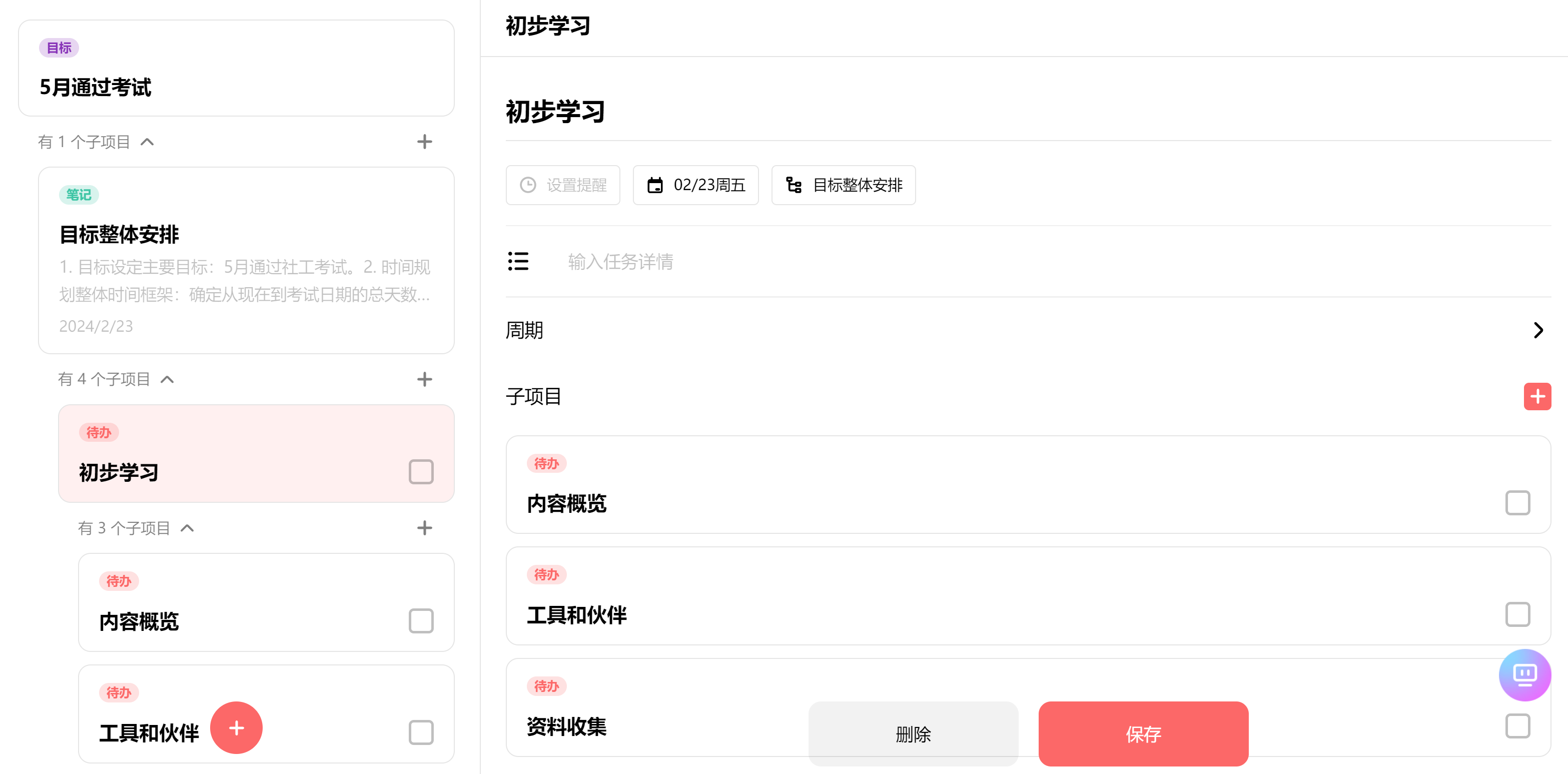
This view is designed to help you organize and manage lists as a map, showing your plan in a structured way so that you can follow progress step by step.
The following example shows how to use structure view to plan for an exam.
1. Open list view
At the top of the main screen, select the Planner or Lists tab. Select or swipe to Lists to open list view.
When you create a list, you can ask Elisi AI to help you build a structured goal tree.
2. Build a task structure
In structure view, create a clear hierarchy for your tasks. Start with a list.
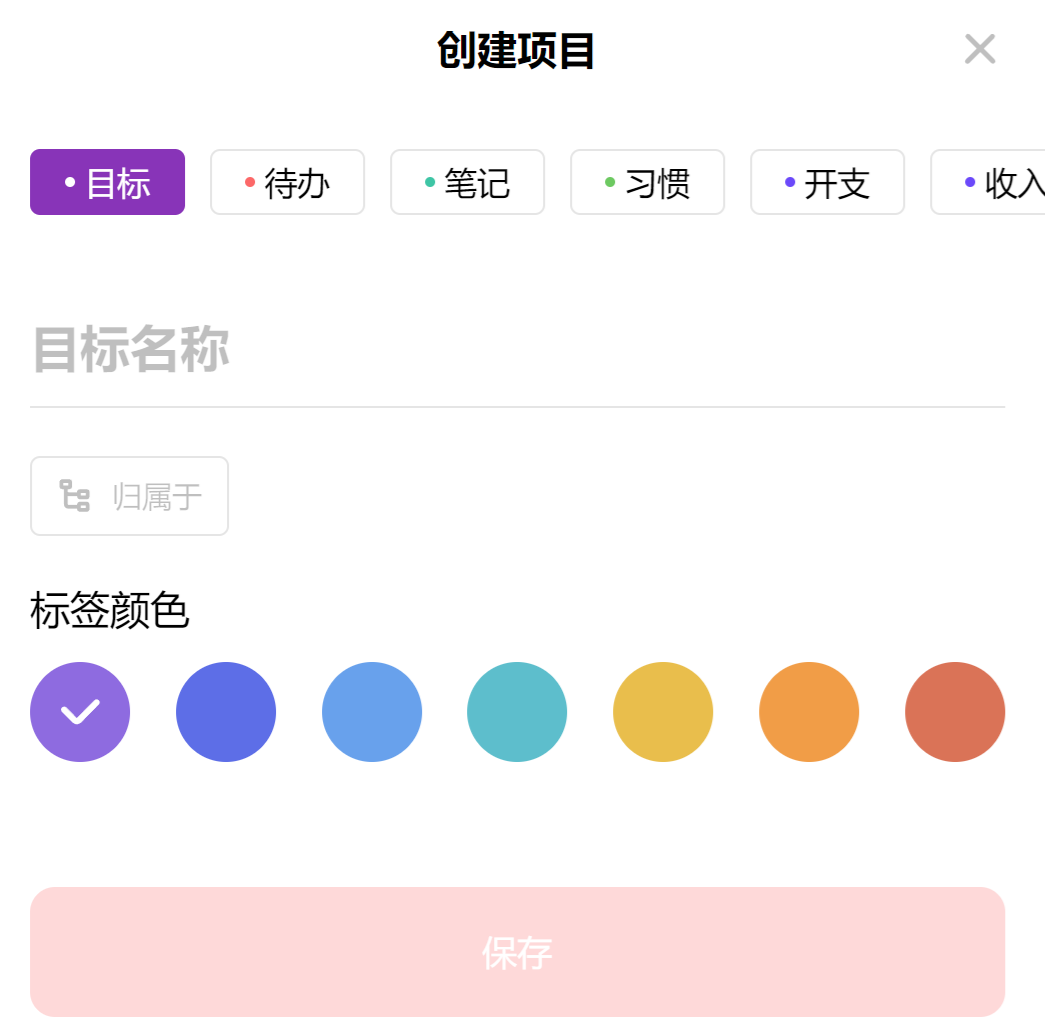
For example, if your list is “Pass the exam,” use it as the starting point for your plan.
- Add a list: Select + and create the main list, “Pass the exam.”
- Add child items: Add items below the list and continue breaking them down as needed. Assign dates to nodes to show them on the Planner page.
- View the structure: Open any node to see the items below it.
For example, you might divide the overall plan into four study stages.
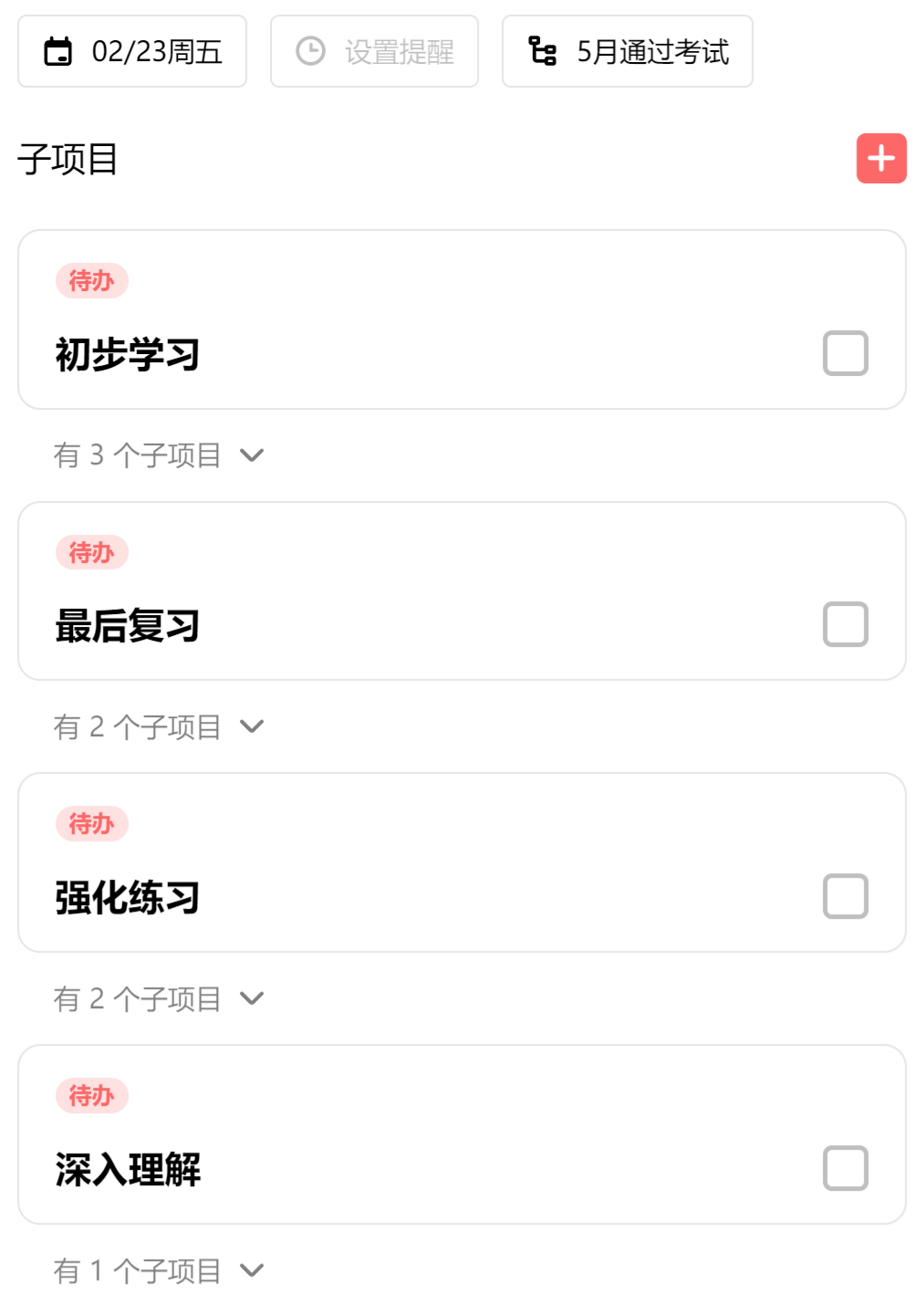
Open any node's details to view or expand its child structure.
3. Break down subtasks
Add more specific activities or habits to each subtask to help you complete it.

- Create a habit: Under a “Review” task, select the plus button to add a child item, such as the habit “Review for one hour each day.”
- Track your mood: Recording and reflecting on your mood at each stage can help you keep going.
- Review progress: Set a weekly review for the list and adjust the plan when needed. AI-assisted reviews for this workflow are planned; suggestions are welcome.
4. Check tasks in the Planner
After planning in list view, tasks appear in the Planner. Focus on this week's work and return to the structure whenever you need to update the plan.
If a task is difficult to carry out, break it down further until it becomes clear and actionable. A well-structured plan can make daily progress feel achievable.
- Expand or collapse items: Open a task's details in the Planner to expand or collapse its children. This helps you focus on a task while keeping the overall list in view.
- Edit and update tasks: Select a child task to change its description or completion status. You can also add child tasks here. Keep breaking down the work until there is a step you can complete today.
5. Simplify your tasks with structure view
Structure view makes tasks easier to understand and organize. See the list and its parts together, manage your plan at different levels, and make progress one node at a time.
Note: Deleting a parent item also deletes its child structure. Deleting a higher-level item removes the items below it.
Summary
Structured task management improves clarity by breaking a complex list into smaller, specific tasks. This can:
- Make work clearer: See the action required at each step.
- Make plans easier to manage: Track and adjust smaller tasks more easily.
- Build motivation: Completing each small task provides positive feedback.
- Clarify priorities: See how tasks relate and decide what should come first.
- Increase flexibility: Restructure tasks more easily when your plan changes.
Examples
Project management: A software project can be divided into requirements, design, development, testing, and deployment. Each stage can be broken down by feature or module, helping team members understand their responsibilities and complete the project on time.
Personal study plan: A student preparing for an exam can organize study by subject, then by topic or chapter. Weekly lists and daily review or practice tasks can help cover the material systematically.
Health plan: A long-term goal, such as losing weight or improving fitness, can be divided into shorter goals and actions. Set a monthly target, plan exercise and meals each week, and record daily actions to track progress and adjust based on your needs.
Whether you are planning work, study, or personal life, a structured system can help you make progress. Build your list structure and move toward the life you want, one step at a time.